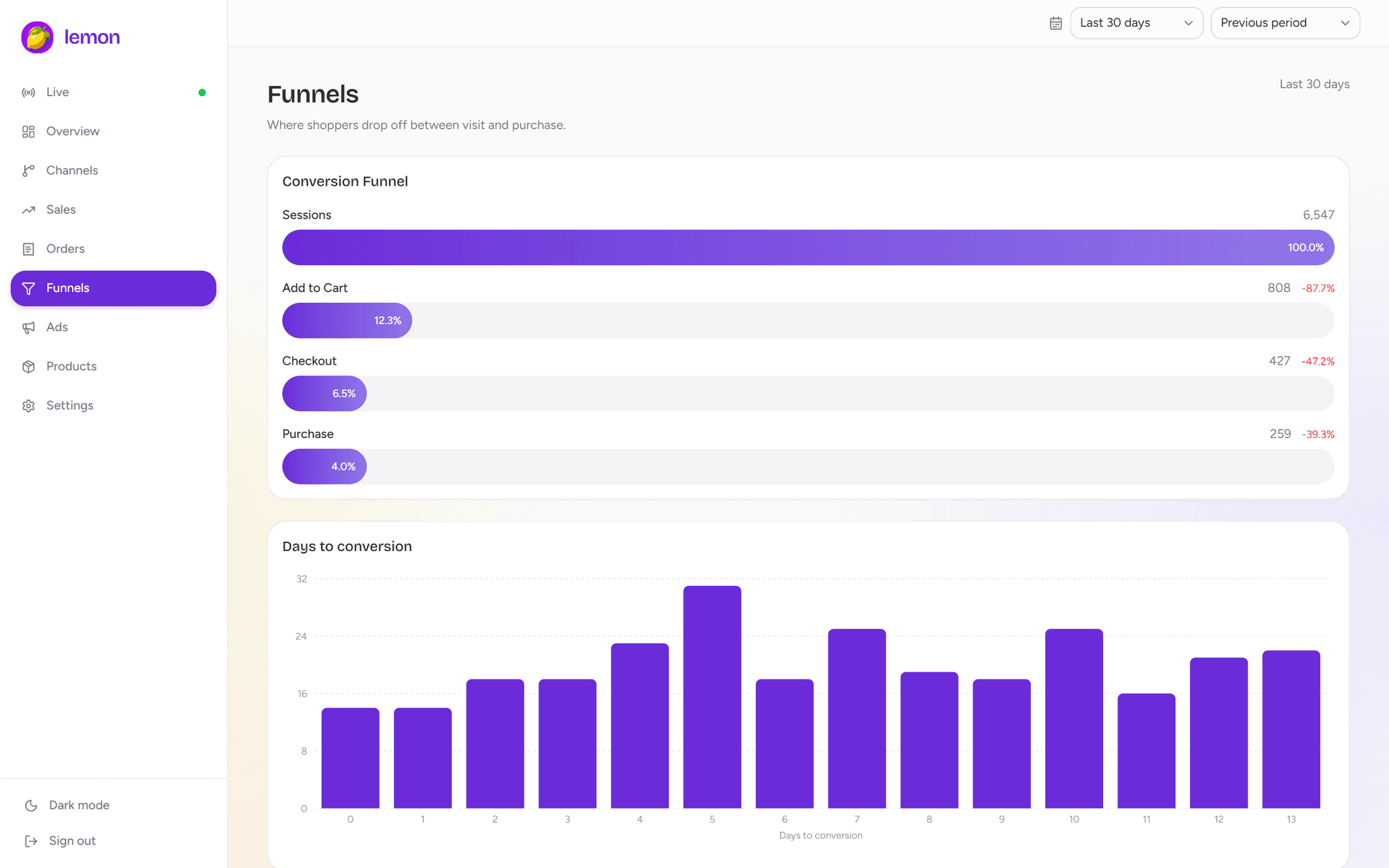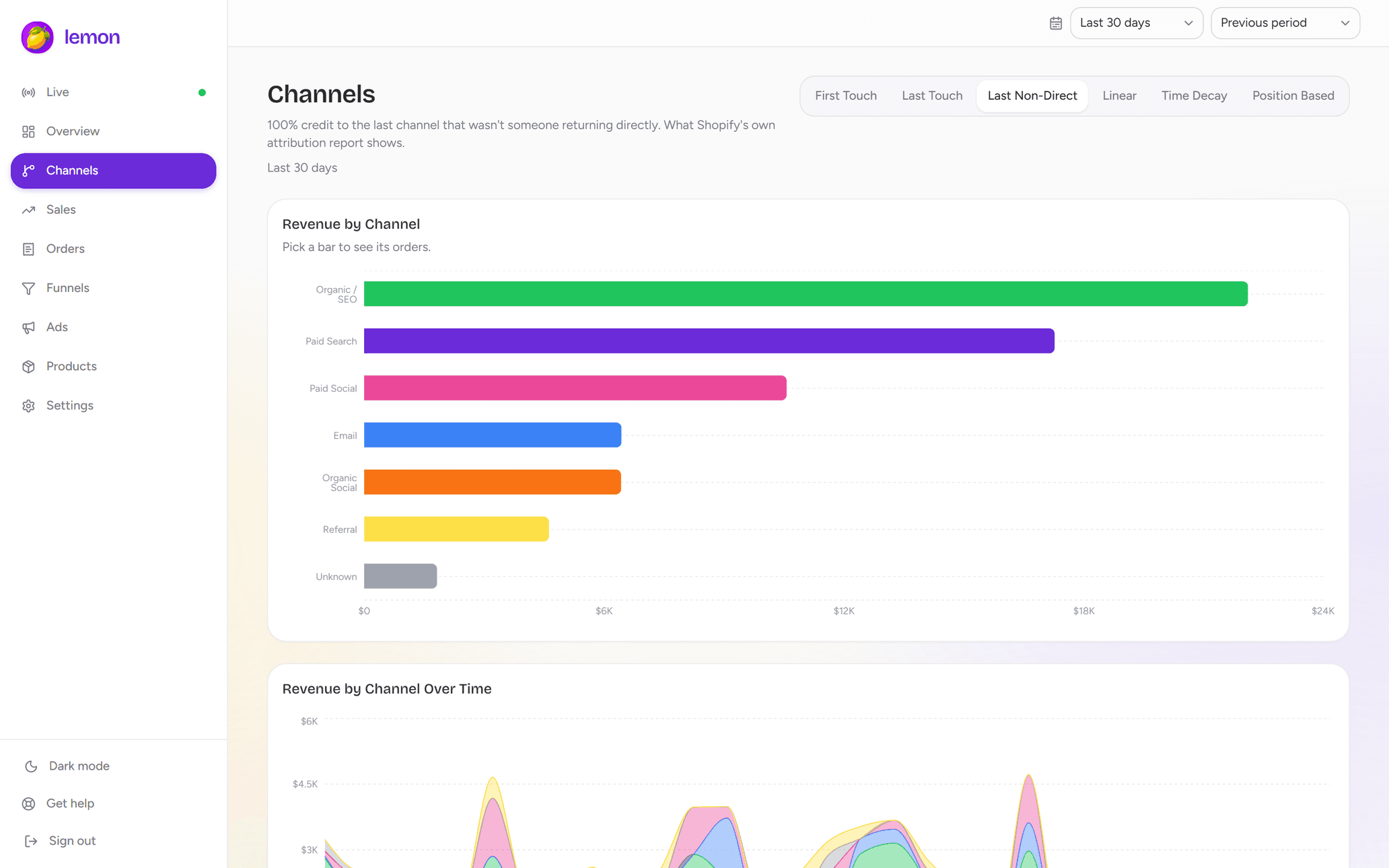
Live cart tracking
Live carts for Shopify: see what shoppers do before they buy
Learn how to view live Shopify carts, check products and traffic sources, validate tracking, and turn checkout activity into useful store decisions.
The short answer
To see live carts in Shopify, open Analytics → Live View for a store-wide activity snapshot. If you need to inspect individual carts, products, values and available campaign details, use a live cart analytics app such as Lemon. Use the live feed to investigate what is happening now, then use reports over a consistent period to evaluate performance.
What does live cart tracking actually show?
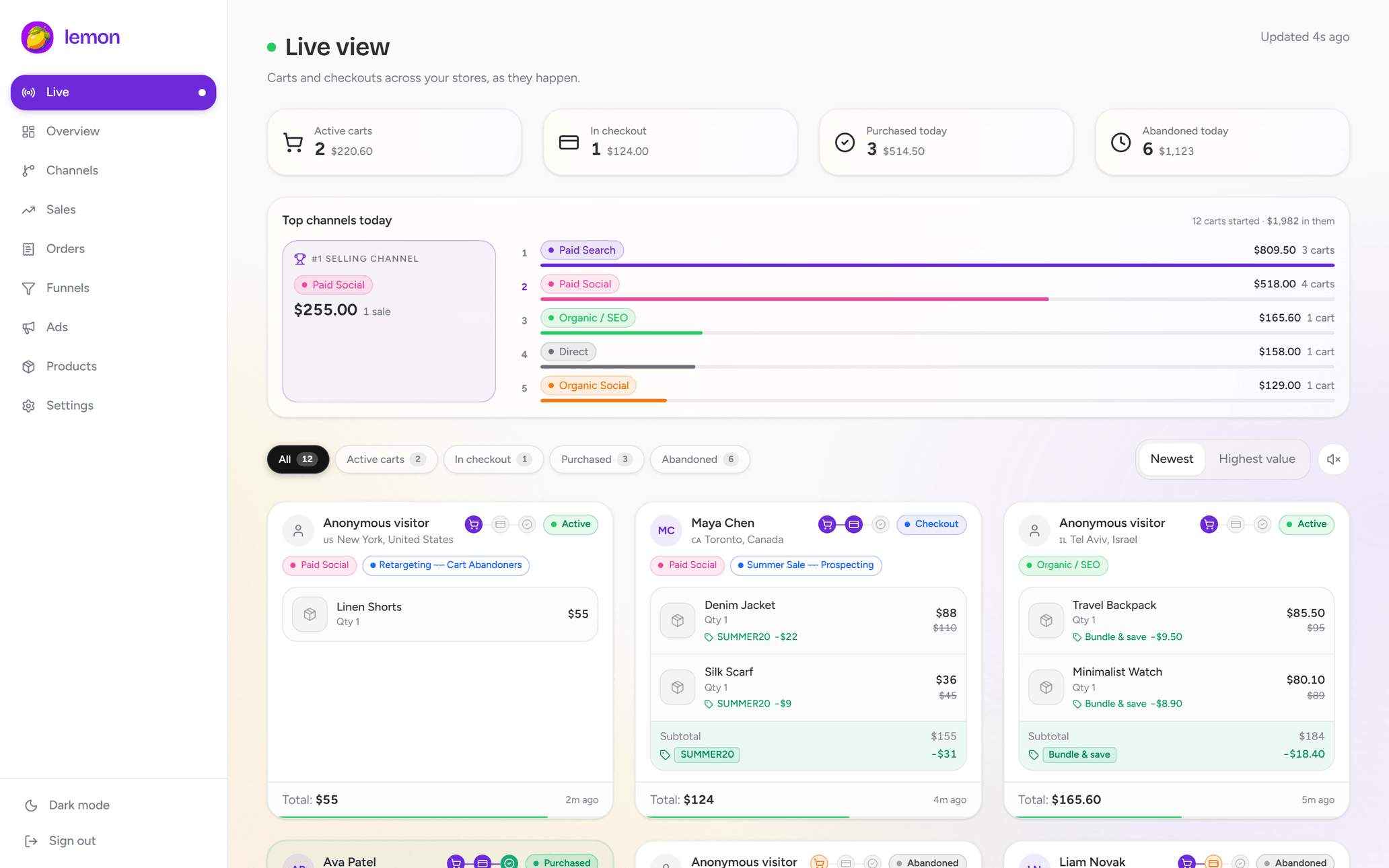
A live cart is a shopping session with products in the basket before the purchase is complete. Watching that session lets you answer a different question from a sales report: what are people trying to buy right now, and where are they getting stuck?
Useful cart context includes the products and quantities, current cart value, checkout stage, and available source or campaign information. In Lemon’s live carts for Shopify, those details help connect a shopping session to its marketing context. A cart total is potential basket value; it is not booked revenue.
Consider a hypothetical product launch. Several visitors add the featured item but remove it when they add a second product. That pattern gives you a reason to test the bundle, its price and its discount rules. It does not establish why any particular shopper left. The useful result is a focused investigation, not a guessed motive.
Start with Shopify’s built-in Live View
In your Shopify admin, go to Analytics → Live View. Shopify’s customer behavior cards summarize sessions with active carts, checkout activity and purchases over the preceding ten minutes. Its definition of checking out includes submitting contact information. See Shopify’s Live View definitions before comparing these figures with another tool.
That snapshot is useful during a promotion: it tells you whether shopping activity is arriving and progressing. If your next question is which products are in a specific cart or which campaign brought that session, move to a report that exposes those details.
Keep the reporting window in view. A shopper can leave the ten-minute window without abandoning their purchase forever. A number dropping on screen is not, by itself, evidence of a broken checkout or a lost sale.
Inspect individual carts with a repeatable workflow
Open Lemon’s live cart view after connecting your store through Shopify. Start with one campaign or product instead of trying to interpret every session at once. A useful first pass is:
- Confirm the context. Select the intended store and note the report time and last activity. Make sure you are looking at the promotion you want to investigate.
- Read the basket. Check products, variants, quantities and value. Look for the item the ad promised, rather than treating any cart addition as success.
- Read the source. Check the channel and available UTM campaign. Use a tagged test visit if the campaign name is missing.
- Follow the stage. Did the session remain a cart, reach checkout, or complete a purchase? Note the sequence and timing before drawing a conclusion.
- Record one testable observation. For example: “The promoted bundle appears in carts, but its discount did not appear in my own checkout test.”
The last step makes monitoring useful. It turns a moving dashboard into a concrete task with evidence. If campaign labels are inconsistent, follow our Shopify UTM tracking guide before making comparisons between ads.
Validate tracking before interpreting a quiet feed
A missing event and a missing shopper are different problems. Test a known journey before deciding that visitors are not adding products. Use your own test session, note the time, and choose a recognizable product so you can distinguish the test from ordinary traffic.
- Open a tagged link to an actual product in your store.
- Apply the store’s normal consent choice for your test session, then add the product and change its quantity.
- Proceed to checkout and check which stages appear. You do not need to place a paid order just to validate cart activity.
- Compare the observed product, quantity and campaign with what you expected. Keep the test out of campaign performance conclusions.
If the app receives nothing, Shopify provides a Pixel Helper under Settings → Customer events; use the app pixel’s Test action. Its event and consent status help distinguish collection problems from an empty store. Follow the official app pixel testing steps. Customer privacy settings can limit which activity is available.
Lemon uses a Shopify app pixel for live activity. Its order attribution also reads data supplied with Shopify orders. Neither a working install nor a completed order guarantees that every earlier browser event is available.
Turn live signals into store decisions
Use a simple observation → check → decision sequence. The examples below are investigation prompts, not diagnoses.
- Repeated carts containing an unexpected variant: open the exact campaign link on a phone and confirm the landing variant, size selector and imagery agree with the ad.
- Shoppers reach checkout but purchases appear quiet: test shipping availability and the offered payment methods. Then check a longer reporting window before deciding the change affected conversion.
- One campaign creates many low-value baskets: compare the advertised product and offer with other campaigns. Review completed sales and margins before reallocating spend.
- Most sessions have no useful campaign label: inspect the incoming URLs and redirects. Fix the measurement problem before deciding the traffic is low quality.
If the concern is drop-off, our guide to abandoned carts versus abandoned checkouts explains which records and funnel stages to investigate. Live monitoring is most valuable when it helps you choose the next check.
Don’t turn a live snapshot into a conversion rate
Suppose you see 12 active carts and 3 recent purchases. Dividing 3 by 12 does not establish a 25% cart conversion rate. Those counters can represent different sessions, time windows or status rules; some current carts have not had time to convert.
For performance analysis, use a defined reporting period and consistent session-based metrics. Shopify’s behavior reports distinguish sessions with cart additions, sessions reaching checkout and sessions completing checkout. Use the live feed to spot a pattern, and the appropriate historical report to decide whether it persists.
A useful routine is to write down one live observation, verify it with a controlled test, and review comparable reports after the change. That is a stronger basis for improving a store than refreshing a cart counter and reacting to every movement.
Common questions
Can I see live carts in Shopify without an app?
Yes. Shopify’s Analytics → Live View includes active-cart and checkout activity summaries. Use a cart analytics app when you need additional detail about individual baskets, products and available campaign information.
Can live cart tracking identify every visitor?
No. A shopping session is not necessarily an identified customer. Available identity and activity depend on the data the store and app receive, including customer privacy settings. A cart is not permission to contact a shopper.
Why do Shopify and Lemon show different cart counts?
Start by comparing the reporting window, store, status definition and tracking coverage. Shopify’s Live View uses a recent activity window, while another report can group sessions differently. A mismatch alone does not identify which measurement is wrong.
See the journey in your own store.
Explore live carts, checkout activity and channel attribution with Lemon Analytics.